
The short answer is simple: if your outreach list is still small enough to manage by person, segment, or account, Google Contacts is one of the cleanest ways to build it.
Google officially supports saving contacts, grouping them with labels, and emailing those groups from Gmail. Google also supports built-in mail merge in Gmail for eligible accounts. That gives you a workable stack for low-volume, targeted outreach without exporting your list into a separate system on day one.
The more important correction is this: Google Contacts is an organization tool, not a permission engine and not a deliverability loophole. You still need relevant recipients, sane volume, and technically clean sending. Google’s sender guidelines are very explicit about that.
Best use case
Small, targeted outreach lists where the sender still cares about who each recipient is and why they belong in the sequence.
Best feature
Labels turn Google Contacts into segmentable contact groups that Gmail can use directly in the compose flow.
Main limitation
Contacts help you organize recipients, but they do not fix authentication, spam complaints, or weak targeting.

What Google Contacts is actually good for
A lot of pages on this topic jump straight into “how to send cold emails from Gmail,” but that skips the more useful framing question: what job is Google Contacts doing in the stack?
Its job is list organization. It gives you a clean place to store names, email addresses, and light segmentation before you ever touch the send button. That matters because most cold-email problems start before deliverability. They start at the list layer with poor targeting, duplicate contacts, missing names, or no segmentation.
Google’s own Contacts help documentation shows three useful behaviors for this workflow:
- You can add a single contact or create multiple contacts at once.
- You can store names, email addresses, and other lightweight fields.
- You can manage contact labels, which Gmail then treats as groups.
That is enough to build a practical outreach list if your operation is still closer to account research and personalized outreach than to high-volume email marketing.
Visual: the three-step Google Contacts list workflow
Contacts organize the recipients, labels define the segment, and Gmail handles the actual send surface.
1. Add Contacts
Enter them manually or import a CSV.
Make sure names and default emails are clean.
2. Apply Labels
Create a segment such as agencies, SaaS, or follow-up.
Labels become reusable contact groups in Gmail.
3. Send in Gmail
Use normal compose for small batches.
Use mail merge if your account and volume justify it.
Step 1: add or import the contacts you actually want to reach
Start inside Google Contacts and resist the temptation to dump in a messy master spreadsheet. The point of the list is not just to hold addresses. The point is to build a segment that can still support relevant outreach.
Google’s help page says you can create one contact at a time or create multiple contacts in one move. If your data already lives in a spreadsheet or another CRM, Google also supports importing CSV and vCard data into Contacts.
The quality bar here is straightforward:
- Each contact should have the right email address.
- Each contact should have a useful display name.
- Each segment should have a clear business reason for existing.
- Each row should be clean enough that personalization does not look broken.
If you have a CSV export from a lead source, this is the moment to remove duplicates and obvious junk before import. Google’s sender guidelines specifically warn against purchased email addresses and against sending to people who did not sign up for your mail when you treat it like bulk email. Even for legitimate B2B outbound, that is a good discipline: relevance first, volume second.
Manual entry works better than people think
If you only need twenty, fifty, or one hundred carefully chosen contacts, manual or small-batch entry can be the cleaner workflow because it forces list review before sending.
CSV import is best for pre-qualified lists
Use import when the list already exists elsewhere and you trust the source data enough to segment it immediately after upload.
Bad data becomes bad personalization
A broken first name field or wrong company name does not just look sloppy. It raises the odds that the message is ignored or flagged.
Step 2: turn the contacts into a real list with labels
This is the part most beginners miss. In Google Contacts, the list itself is usually a label. Labels are how you turn a pile of contact records into something Gmail can actually use for grouped sending.
Google’s View, group & share contacts documentation says you can select contacts, apply a label, and then use that group in Gmail. It also notes an important detail: if a contact has multiple email addresses, only the default email address is added to the group.
That matters for cold outreach because you want the right address to travel with the right segment. If a contact has both a generic inbox and a personal work address, you need to know which one Gmail will pull into the group.
Good label naming also helps keep the workflow clean. Use names that explain the business logic, not names that only make sense for one afternoon. A few examples:
- `Agency founders - March test`
- `B2B SaaS - follow-up`
- `Design studios - warm prospects`
- `Partners - referrals`
Once the label exists, you now have something closer to an actual email list instead of just raw contact storage.
Visual: the list stack behind Gmail outreach
Google Contacts solves the middle of the stack. It does not replace the layers below it.
Step 3: send from Gmail with either compose or mail merge
Once the label is ready, you have two real sending options inside the Google stack.
Option A: normal Gmail compose
Google’s Gmail help page says you can email a contact or contact group directly from Gmail by starting to type the person or group in the `To` field. Gmail expands a contact group into individual recipients.
This is the better path when your outreach is still handcrafted, reply-driven, and small enough that you are comfortable reading the recipient list before sending.
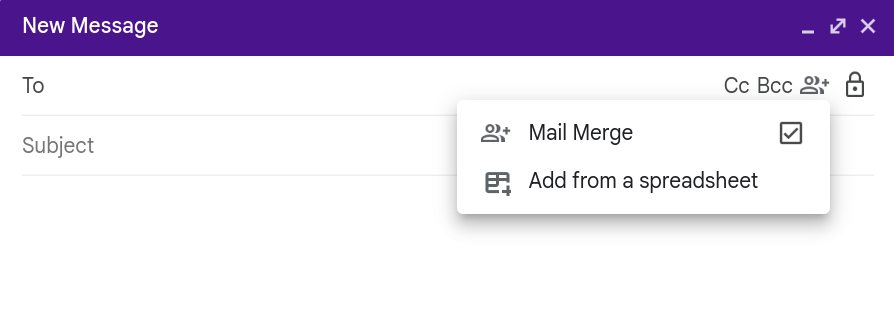
Option B: Gmail mail merge
If your Google Workspace edition supports it, Gmail also offers built-in mail merge. Google documents merge tags such as `@firstname`, `@lastname`, `@fullname`, and `@email`. Google’s Workspace updates post also shows that Gmail can link a spreadsheet for recipient data and, in that flow, use up to 1,500 mail-merge recipients or messages per day.
That does not mean 1,500 cold emails per day is a good idea for every sender. It means Google has a product surface for moderate-scale, personalized sends. Whether your specific use case is wise still comes down to targeting, message quality, and complaint risk.
| Question | Google Contacts + Gmail compose | Google Contacts + Gmail mail merge | Dedicated outbound tool |
|---|---|---|---|
| Best use case | Small, hand-reviewed outreach batches. | Moderate-scale personalized sends in supported Workspace accounts. | Larger outbound systems with automation, sequencing, and reporting. |
| List source | Google Contacts label. | Contacts or spreadsheet-backed merge data. | CRM, warehouse, lead tool, or synced prospect database. |
| Control over personalization | Manual personalization, strongest quality control. | Built-in merge tags, faster but easier to break with bad data. | High automation, often more operational complexity. |
| When it starts to break | When list size is too big to review manually. | When the workflow becomes campaign-heavy rather than relevance-heavy. | When the team automates volume faster than it improves targeting. |
What Google says you still have to do
This is where most “Google Contacts cold email” tutorials get sloppy. They explain the mechanics but skip the sender requirements.
Google’s Email sender guidelines say all senders to personal Gmail accounts need SPF or DKIM, and bulk senders need SPF, DKIM, and DMARC. Google also says to keep spam rates in Postmaster Tools below 0.3%, increase sending volume slowly, avoid bursts, and not purchase email addresses.
That means adding contacts to a label is not the same as making the outreach safe. The send layer still sits on top of sender identity, reputation, and recipient reaction.
Google also documents explicit sending limits. For Google Workspace accounts, the current admin help page lists:
- Up to 2,000 messages per day per user account.
- Up to 1,500 mail-merge messages per day.
- Up to 500 Gmail API recipients per message.
For consumer Gmail accounts, Google’s help center still warns that you can hit limits around 500 recipients in a single email or more than 500 emails sent in a day.
Those are limits, not recommendations. In real cold outreach, the better question is usually not “how much can I send?” but “how much can I send without causing complaints?”
Saving someone as a contact does not create consent
Google Contacts is just address-book structure. Legal and policy obligations still apply, especially if you move from one-to-one outreach into something that looks like marketing.
Low-volume is usually the right starting point
Google explicitly recommends increasing sending volume slowly. That advice maps well to targeted outbound where you want feedback from replies before scaling the segment.
List hygiene matters before tooling
Wrong addresses, role inboxes, and irrelevant contacts create the kind of negative engagement that no label system can fix.
The best practical workflow for small cold-email teams
If you want a version of this process that actually holds up in the real world, keep it simple:
1. Research the segment first
Decide why these people belong together before you import a single address. Segment logic should come first.
2. Import only qualified contacts
Use Google Contacts as the clean list layer, not as a junk drawer for every lead source you have ever touched.
3. Use labels like campaign segments
Labels should map to a specific outreach angle, not just a generic audience bucket.
4. Start with compose, graduate to mail merge later
Manual sends force better review. Move to mail merge only when the messaging and data quality are stable enough to justify it.
5. Keep the sending model mailbox-native
If the campaign starts to look like a bulk platform use case, stop pretending it is still a simple Gmail workflow.
This is also where MagicEmails fits the conversation better than a generic “send more from Gmail” tutorial. If your goal is low-volume, reply-oriented outreach, the real value is not just storing the contacts. It is keeping the workflow close to normal mailbox behavior while still giving the operator structure.
If you want the deeper deliverability context behind that idea, the related guide on how Gmail’s compose window can help inbox placement is the right next read. If you are already struggling to scale without sounding robotic, read how to scale cold outreach without sounding automated after this one.
FAQ
Can you create an email list from Google Contacts without exporting it?
Yes. In practice, the list is a label in Google Contacts, and Gmail can use that label directly when you compose the message.
Is Google Contacts the same thing as a CRM?
No. It is a lightweight contact store and grouping layer. It does not replace pipeline tracking, multi-user workflows, or deeper sequencing logic.
Should you use Bcc for cold email groups?
For most real outbound work, no. If the goal is relevance and replies, grouped Bcc blasts are usually a sign that the workflow is too campaign-like for the sender reputation you want to build.
When should you stop using Google Contacts for outreach lists?
Stop when segmentation, collaboration, compliance, or volume become too complex to manage safely in an address book. At that point you need a more explicit outbound system, not more clever label names.
Bottom line
Google Contacts can absolutely be the simplest way to create an email list for cold outreach if the list is still narrow, targeted, and human-reviewed.
The three steps are straightforward: add or import the right contacts, apply a label that defines the segment, then send through Gmail compose or mail merge depending on the scale.
The part that decides whether it works is not the mechanics. It is whether your targeting, sender setup, and volume discipline are strong enough that Gmail sees the messages as wanted rather than as yet another batch of generic outbound.
SEO notes
Primary keyword coverage is focused on Google Contacts email lists, with related support for Gmail contact groups, mail merge, and cold-email workflow terms.
Intent match
This piece targets readers who already know the destination URL topic and want a practical workflow, not a generic contact-management tutorial.
Canonical
/2021/10/12/how-to-create-an-email-list-from-google-contacts-to-send-cold-emails-in-3-simple-steps/